

Sign in
Where to sign in to the Payments portal, and what to do if you forget your password.
Once you have registered, you can sign in to the Payments portal anytime to view what you owe, make a payment, or check the status of past payments.
Where to sign in
Bookmark the sign-in page from the invitation email you received, or ask your dealer for the direct link if you cannot find it. The portal works in any modern browser on a desktop, tablet, or phone.
What you will need
- The email address you used to register.
- The password you set during registration.
If you forgot your password
Use the Forgot password link on the sign-in page. The portal will send a reset link to your registered email address. Click the link in that email to set a new password.
If you no longer have access to the email address you registered with, contact your dealer. They can verify your identity and help update the contact information on the account.
If you do not have an account yet
You need access to the dealer before you can register. The usual path is an invitation from your dealer — walk through Accept your invitation once it arrives. If you believe an invitation was sent but you cannot find it, check your spam folder, and then ask your dealer to resend. You can also request access yourself: ask your dealer for their Request Drypowder Access link, fill out the form, and the dealer approves the request.
What you see after signing in
The sidebar has a Payables section with two pages.
Pay shows everything you owe your dealer, grouped by job. Each job row shows past-due age, balance, credits, and a count of invoices, debits, and charges. Expand a job to see the underlying items, then select what you want to pay.
Records is your history: invoices, credits, and debits and charges, each in a paid and an outstanding list, plus a Payments tab holding every payment you have made through Drypowder. See Records for the detail.
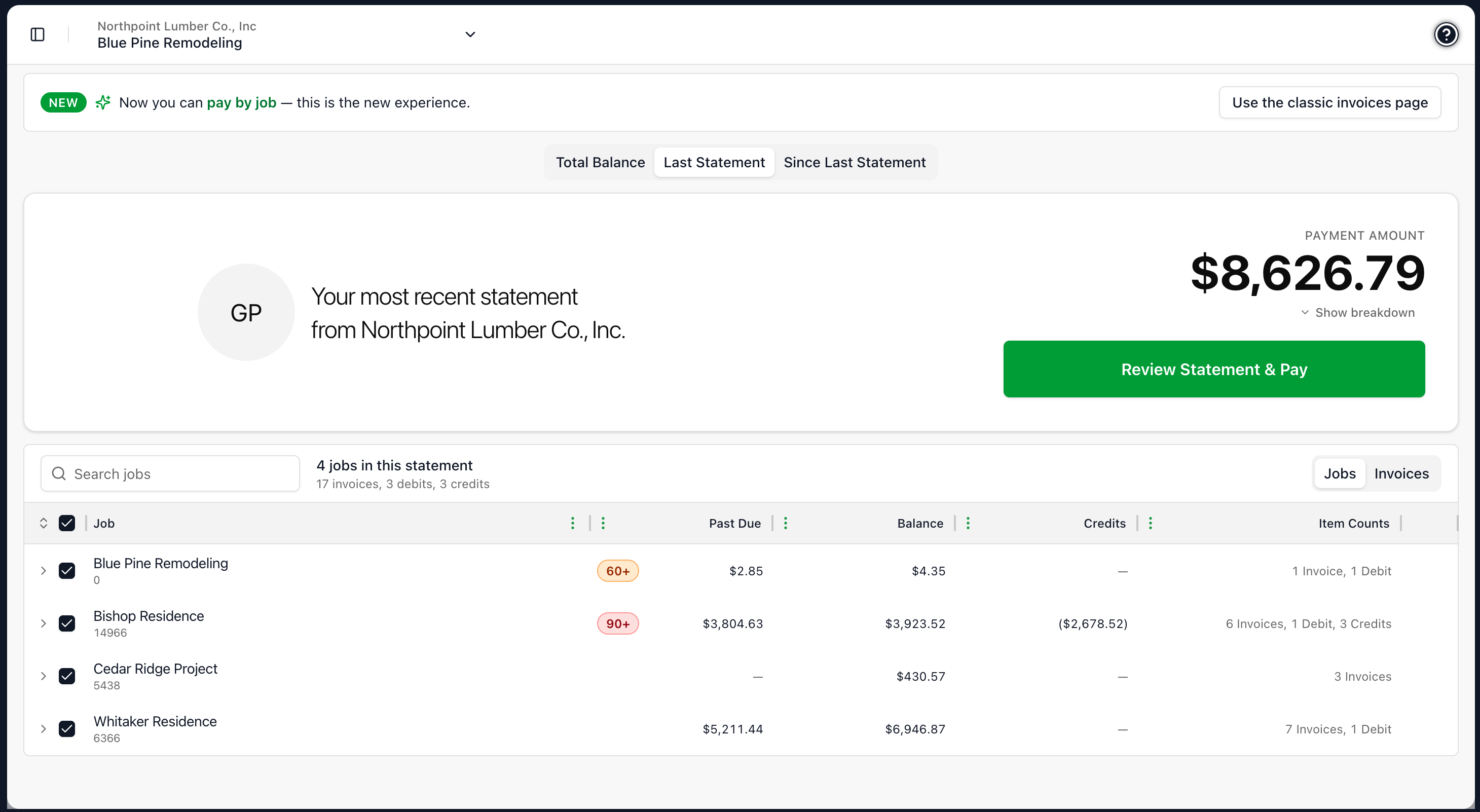
If your dealer runs monthly statements, the Pay page has additional tabs: Total Balance, Last Statement, and Since Last Statement. From Last Statement, you can pay the full statement balance in one click and capture the statement discount if you are paying within the discount window.
Related
- Pay an invoice — Make a payment, end to end.
- Pay a statement — Pay the full statement balance and capture the discount.
- Saved bank accounts — Link a bank account once and reuse it for future ACH payments.