

Pay an invoice
Select invoices, choose ACH or card, preview the total with fees, and submit.
This is the most common thing you will do in the Payments portal: pick a few invoices and pay them. Most payments take under two minutes once you have a payment method linked.
Step 1: Open the Pay page
After signing in, click Pay under Payables in the sidebar. It shows everything you owe your dealer, grouped by job. Each job row shows:
- Past-due age (30+, 60+, 90+ days past due).
- Job balance.
- Credits available against the job (credit adjustments are amounts in your favor, such as a discount or credit memo).
- A count of invoices, debit adjustments (extra charges added to your balance), and credit adjustments under the job.
If your dealer runs monthly statements, you will also see tabs along the top: Total Balance, Last Statement, and Since Last Statement. Stay on Total Balance for this guide. (For paying a statement balance in one transaction, see Pay a statement.)
Step 2: Pick what you want to pay
Expand a job to see the underlying items: invoices, debit adjustments, and credit adjustments. Each row shows the document number, amount, and date.
Select the invoices you want to pay by clicking the checkboxes. If you have credit adjustments available, the portal will offer to apply them against the invoices you are paying. You can pay across multiple jobs in one transaction; just select items from each.
Step 3: Choose your payment method
Once you have selected what you want to pay, choose how you want to pay it:
- ACH (bank transfer) — Lower fees, takes 1 to 3 business days to settle. Requires a linked bank account (one-time setup through Plaid the first time).
- Card (credit or debit) — Higher fees, near-instant. Enter your card details or pick a saved card.
See Payment methods for a side-by-side comparison.
Step 4: Review the preview
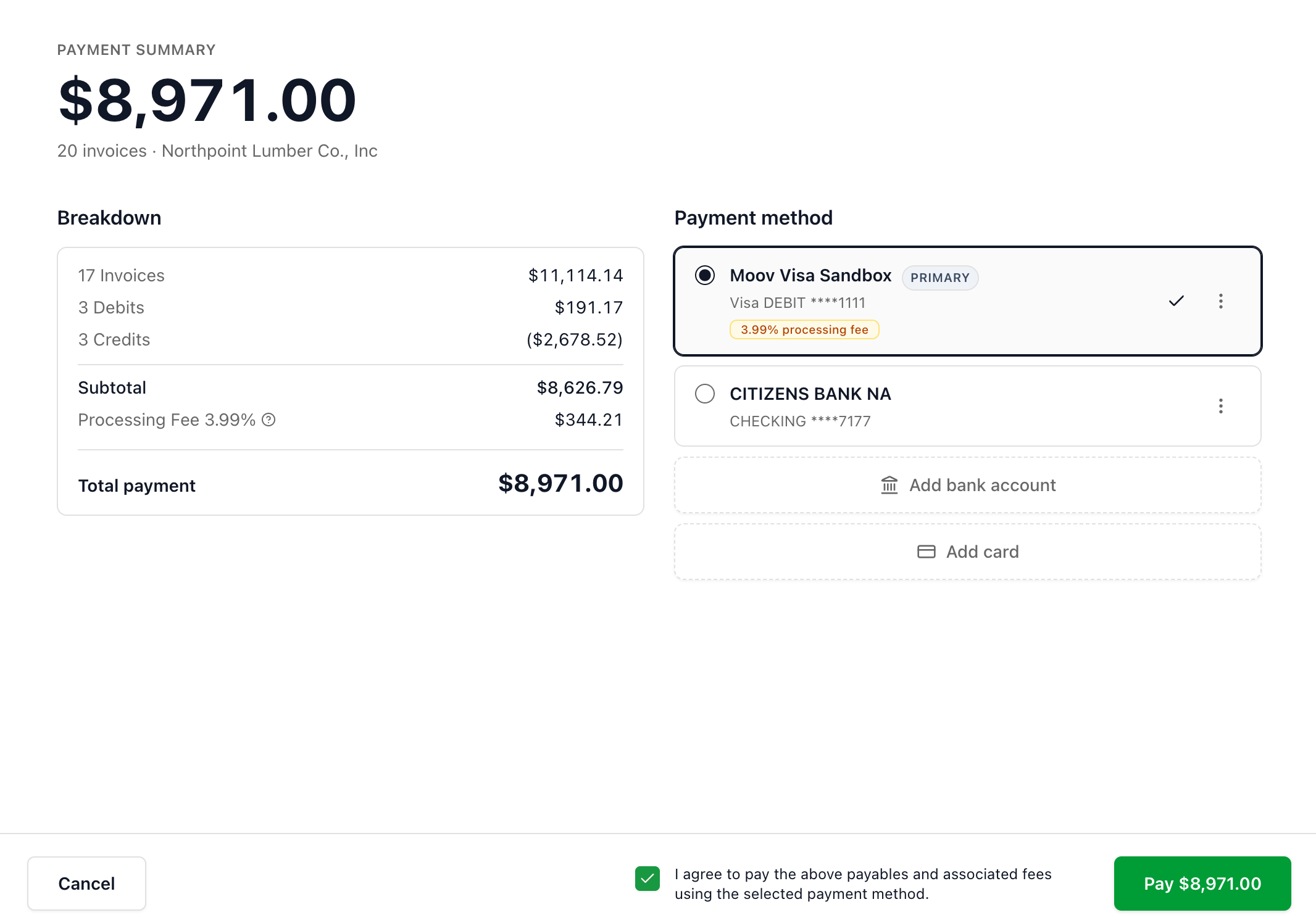
Before you submit, the portal shows you a payment preview with:
- The invoices and adjustments you selected.
- The payment method.
- Any fees that apply.
- The total amount that will be charged.
Take a moment to confirm the total matches what you expected. If anything looks off, you can go back and adjust your selections.
Step 5: Submit
Click Submit to send the payment. You will see a confirmation screen with the payment status (usually Pending at first), and a receipt is emailed to you.
For ACH, the payment stays in Pending status for 1 to 3 business days while the bank transfer clears. For card payments, the status typically updates to Settled within seconds.
What to expect afterward
Your dealer sees the payment on their end as soon as you submit, even before it settles. The invoices you paid will show as paid on your Payments history once the payment settles.
If you ever need a copy of a receipt, open Records and go to the Payments tab. Each past payment has a download option.
Paying from your phone
The whole flow works on a phone — including linking a bank account. The layout adapts to the smaller screen: your selection total and the Review & Pay action appear in a bar at the bottom of the screen rather than off to the side, and you tap a job to expand its items. You can read your dealer's email and pay from the same phone.
Cancel a payment
While a payment is still Pending, you can cancel it from your Payments history using the Cancel action and confirming in the dialog that appears. Once a payment has settled, it can no longer be canceled.
Related
- Pay a statement — Pay a full statement balance and capture the statement discount.
- Payment methods — ACH versus card, fees, and timing.
- Payment statuses — What Pending, Settled, and other statuses mean.