

Pay a statement
Pay the full statement balance in one click and capture the statement discount if you pay within the window.
If your dealer runs monthly statements, you can pay the entire statement balance in a single transaction from the Payments portal — and capture the statement discount automatically when you pay before the discount date.
This is the fastest way to pay if you owe money across many invoices and want to clear everything at once.
Who sees this option
The Last Statement view only appears for dealers who use Spruce statement billing. If you do not see the Last Statement tab on the Pay page, your dealer is billing you invoice by invoice instead of by monthly statement. Pay individual invoices through Pay an invoice in that case. Your account may also be set up so that each invoice carries its own discount, in which case paying invoices individually still earns it. See Fees and discounts for the two arrangements.
Step 1: Open the Last Statement tab
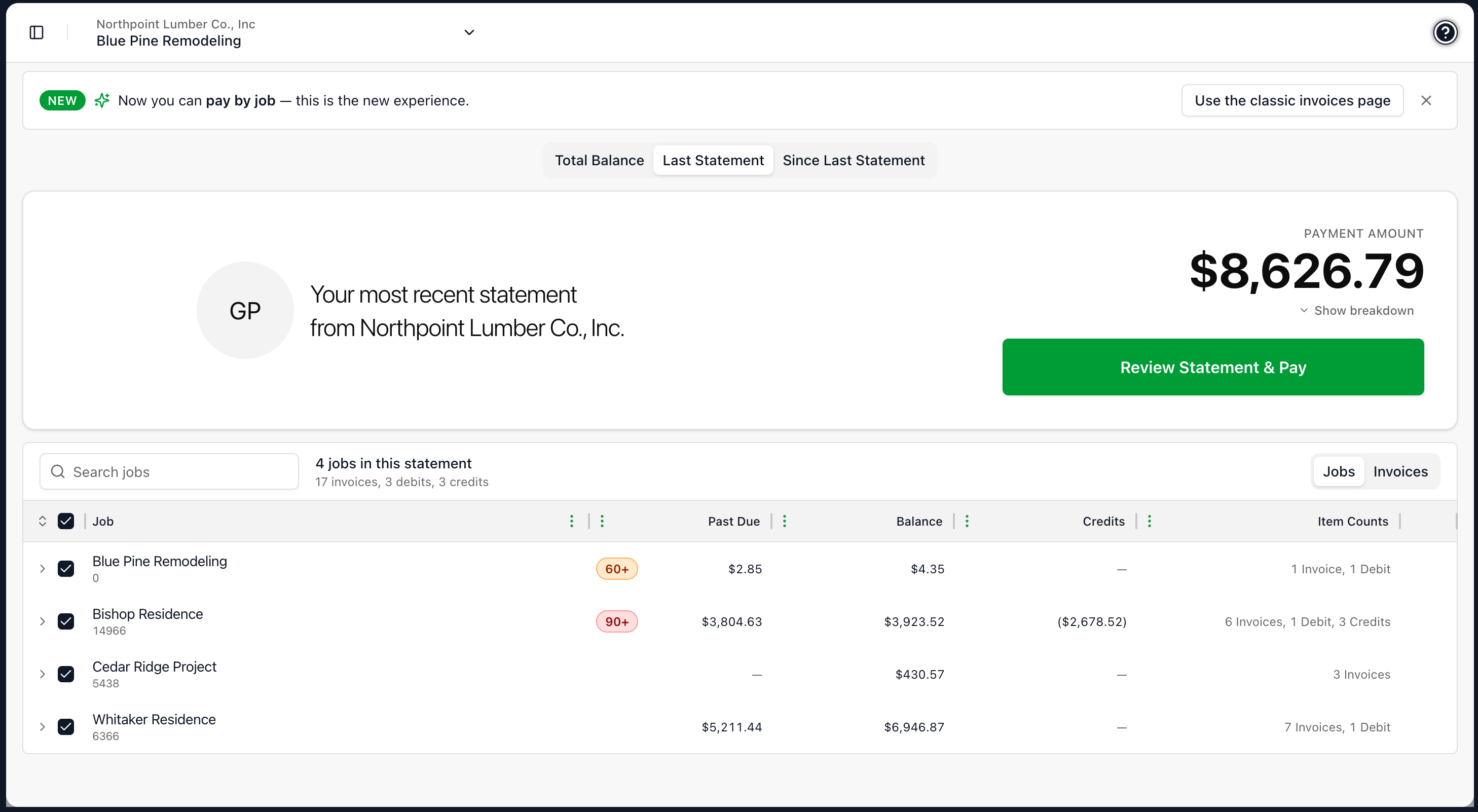
After signing in, go to Pay under Payables in the sidebar. Along the top you will see three tabs: Total Balance, Last Statement, and Since Last Statement.
- Total Balance is everything you owe right now, regardless of which statement it sits on.
- Last Statement is the items that rolled onto your most recent statement.
- Since Last Statement is anything that has been invoiced since the statement closed.
Click Last Statement.
Step 2: Review the statement
The Last Statement view shows the statement balance and the items that make it up. You will see:
- The statement balance.
- The discount date (if a statement discount is offered).
- The due date.
- The invoices, debit adjustments, and credit adjustments that rolled into the statement.
Step 3: Submit a statement payment
Click the option to pay the full statement balance. The portal pre-selects everything on the statement and opens the payment preview.
If today is on or before the discount date, the preview shows the statement discount applied automatically. The total reflects the discount, so you only pay the discounted amount.
If today is past the discount date, the preview shows the full statement balance without a discount.
Step 4: Choose method and submit
Choose ACH or card the same way you would for an individual invoice payment, review the preview, and submit.
The payment posts back to your dealer with the discount amount included, so your account closes out cleanly on their end. You do not need to do anything separate to claim the discount.
What if I do not want to pay the full statement?
You do not have to. The Total Balance view lets you pick and choose individual items, so you can pay only the invoices you intend to clear right now. See Pay an invoice.
The statement discount only applies when you pay the full statement balance by the discount date. If you pay anything less than the full statement, or pay after the discount date, the discount does not apply.
Related
- Pay an invoice — Pay one or more invoices instead of the full statement.
- Fees and discounts — How the fee preview and statement discount work in detail.