

Records
The Records view: paid and outstanding invoices, credits, debits and charges, and your payment history, with per-column filters.
Records is where you look up history. Pay is where you choose what to pay now; Records holds everything, paid and unpaid, so you can answer questions like "when did that invoice get paid?" or "did my credit ever get used?" Both sit under Payables in the sidebar.
Records covers one invoicing account at a time. If you have more than one account with a dealer, switch accounts first using the selector at the top of the sidebar.
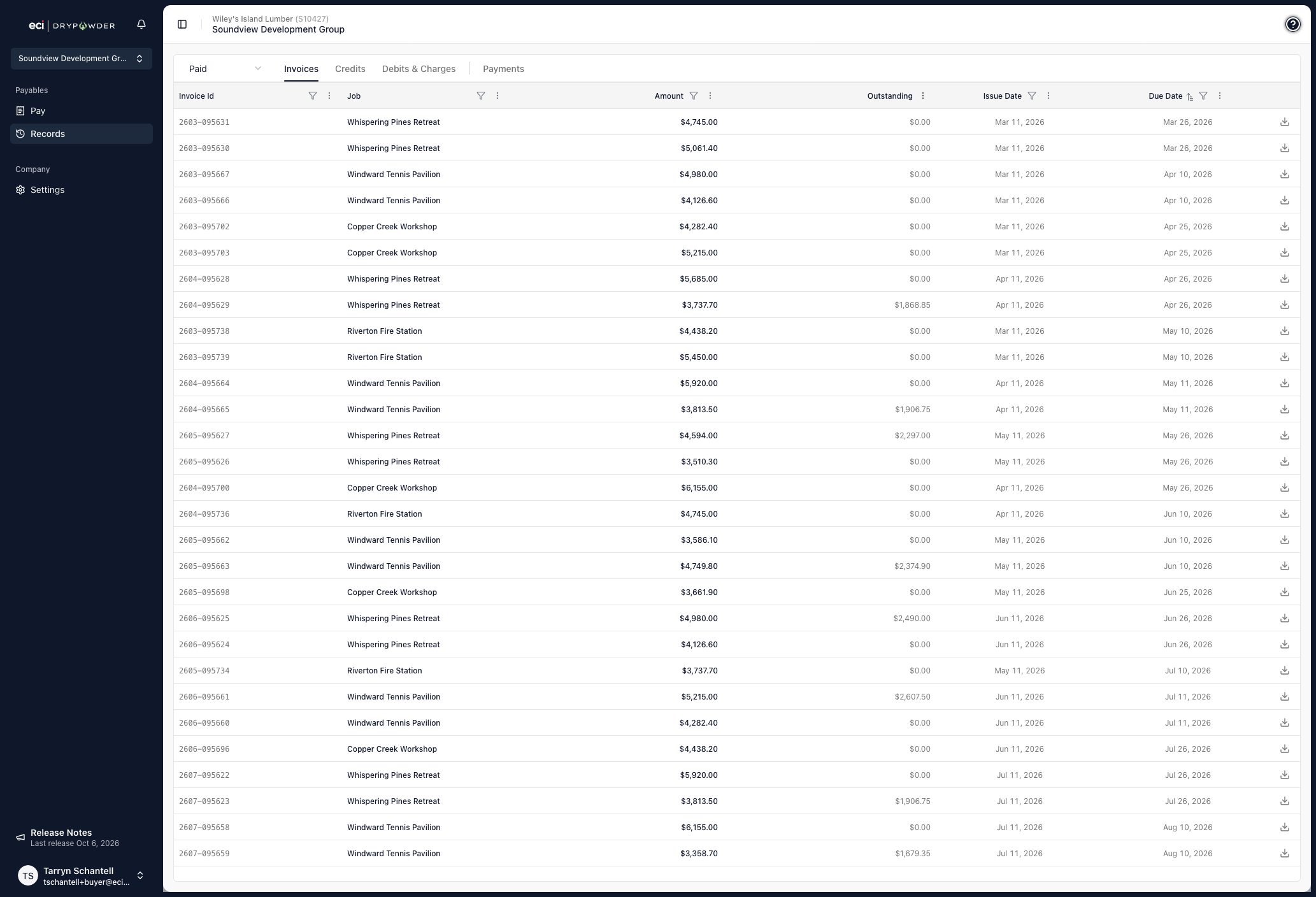
Tabs and the paid or outstanding selector
Records has four tabs: Invoices, Credits, Debits & Charges, and Payments. The first three share a selector set to either Paid or Outstanding.
Opening Records takes you to Invoices with Paid selected.
| Tab | Outstanding shows | Paid shows |
|---|---|---|
| Invoices | Invoices with a balance left to pay | Invoices you have submitted a payment for, plus any invoice with nothing left owing |
| Credits | Credits you have not used yet | Credits already applied to a payment |
| Debits & Charges | Debit adjustments with a balance left | Debit adjustments you have submitted a payment for, plus any with nothing left owing |
| Payments | Not affected by the selector | Not affected by the selector |
The selector stays on screen while you are on the Payments tab, but it has no effect there. The Payments tab always shows your full payment history.
An item can appear in both lists
Paid counts an item from the moment you submit a payment against it, not from the moment the money settles. So an invoice can sit in the Paid list with its full amount still showing in the Outstanding column, because the payment is still processing.
A part-paid invoice appears in both lists for the same reason. The Outstanding column is what tells you where it really stands: that figure is what is left to pay.
Columns
Invoices: Invoice Id, Job, Amount, Outstanding, Issue Date, Due Date.
Credits: Credit Id, Job, Amount, Available, Issue Date, Type. Available is what is left on the credit, so a partly used credit shows less there than in Amount.
Debits & Charges: Debit Id, Job, Amount, Outstanding, Issue Date, Type.
Payments: Account, Id, Invoices, Debits & Charges, Credits, Fees, Payment Amount, Paid At. A payment made against your account balance rather than against specific invoices carries an ON-ACCOUNT badge.
Every invoice, credit, and debit row ends with a download control that saves that document as a PDF.
Filter a list
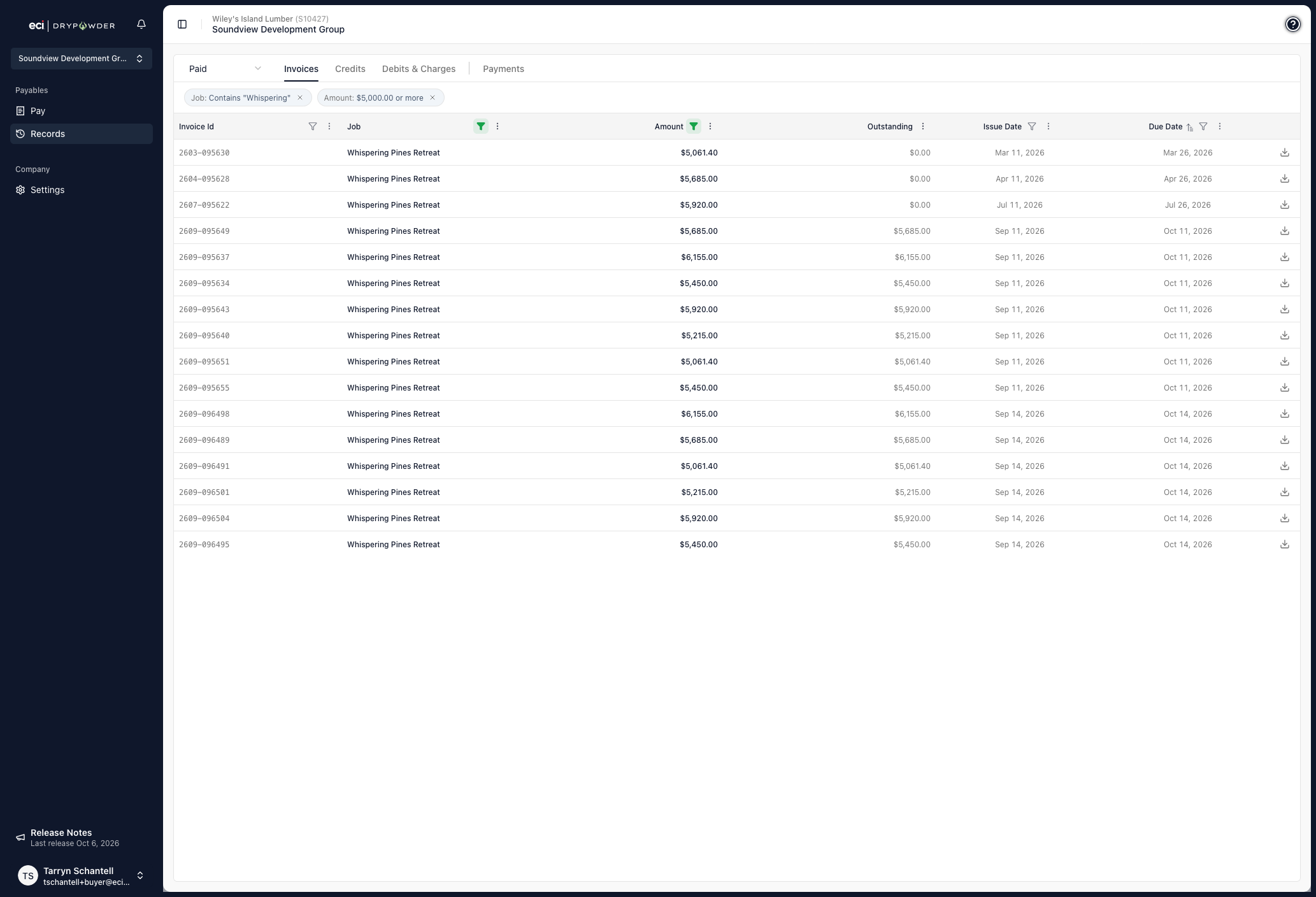
Each column header carries its own filter, and you can combine as many as you need. A column with a filter on it shows a filled funnel icon in its header, so you can see at a glance which ones are narrowing the list.
The filters differ by column:
- Text, on Invoice Id, Credit Id, Debit Id, and Job. Matches any part of the value, so typing
Whisperingfinds every job whose name contains it. - Date range, on Issue Date and Due Date.
- Amount. Choose Equals for a single figure or Range for a span. A range needs the lower figure first, or you will see "Amount from must be less than or equal to amount to." On the Outstanding list this filters what is left to pay; on the Paid list it filters the full document amount.
- Type, on the Credits and Debits & Charges tabs. Pick one or more types.
Set a filter and click Apply. Every active filter appears as a chip above the list, naming the column and what it is doing: Job: Contains "Whispering", Amount: $5,000.00 or more. Click a chip's × to drop that one filter, which is quicker than reopening the column.
Act on a payment
On the Payments tab, open a row's action menu for:
- Payment Details — the full breakdown of that payment, including every invoice, debit, credit, and discount in it, the fee, and the total.
- Re-Send Receipt — sends the payment email again to the address on the payment.
- Cancel Payment — only worth trying on a payment that has not finished processing. Drypowder attempts to cancel the transfer, and tells you if the payment has already gone too far to stop.
Empty lists
An empty list tells you which case you are in. No paid invoices found means there is nothing in that view. No paid invoices match your filters means the view has records but your filters excluded all of them, so clear a chip and look again.
On a phone
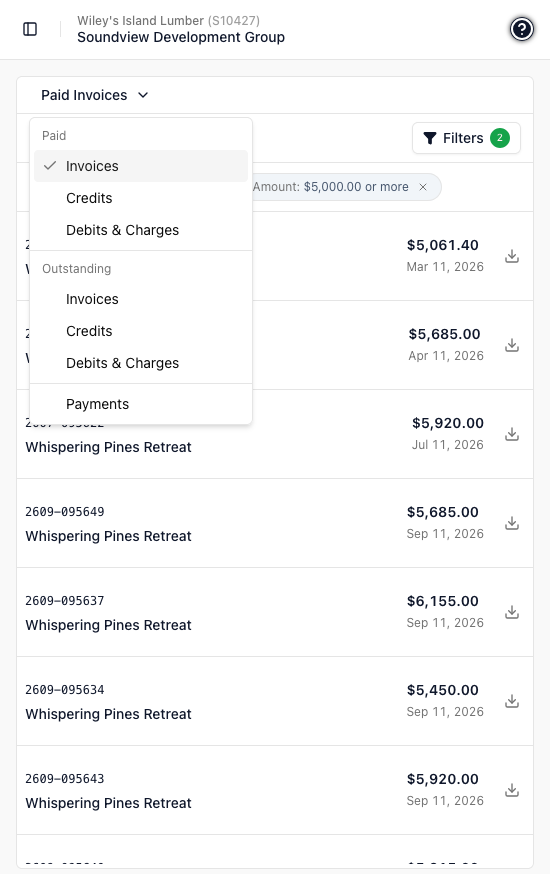
The tabs and the selector collapse into one menu at the top of the screen, labelled with the view you are on, such as Paid Invoices. Opening it lists Invoices, Credits, and Debits & Charges under a Paid heading, the same three under an Outstanding heading, and Payments on its own at the bottom. A check marks where you are.
Rows stack, with the document id and job on the left and the amount and date on the right, and each row keeps its PDF download control.
Filters move into a Filters button that carries a count of how many are active. Set what you need and click Apply, or Clear all to start over. The sheet will not apply a set containing an invalid range.
Related
- Pay an invoice — Choosing and paying what you owe.
- Payment statuses — What each status on a payment means.
- Fees and discounts — How fees and discounts are priced.
- Glossary — Jobs, outstanding items, statements, and other terms.