

Invite a customer to pay online
Send an invitation so a customer can register for the Payments portal.
Send an invitation so a customer can register for the Drypowder Payments portal. Once they register, they can view their open invoices and pay by ACH or card.
Send an individual invitation
- Open the Customers Dashboard and click the customer you want to invite.
- In the account detail view, click Invite.
- The Invite to Drypowder dialog opens. The Account Id is prefilled. Choose a Contact from the dropdown, then confirm or edit the First Name, Last Name, and Email.
- Click Send.
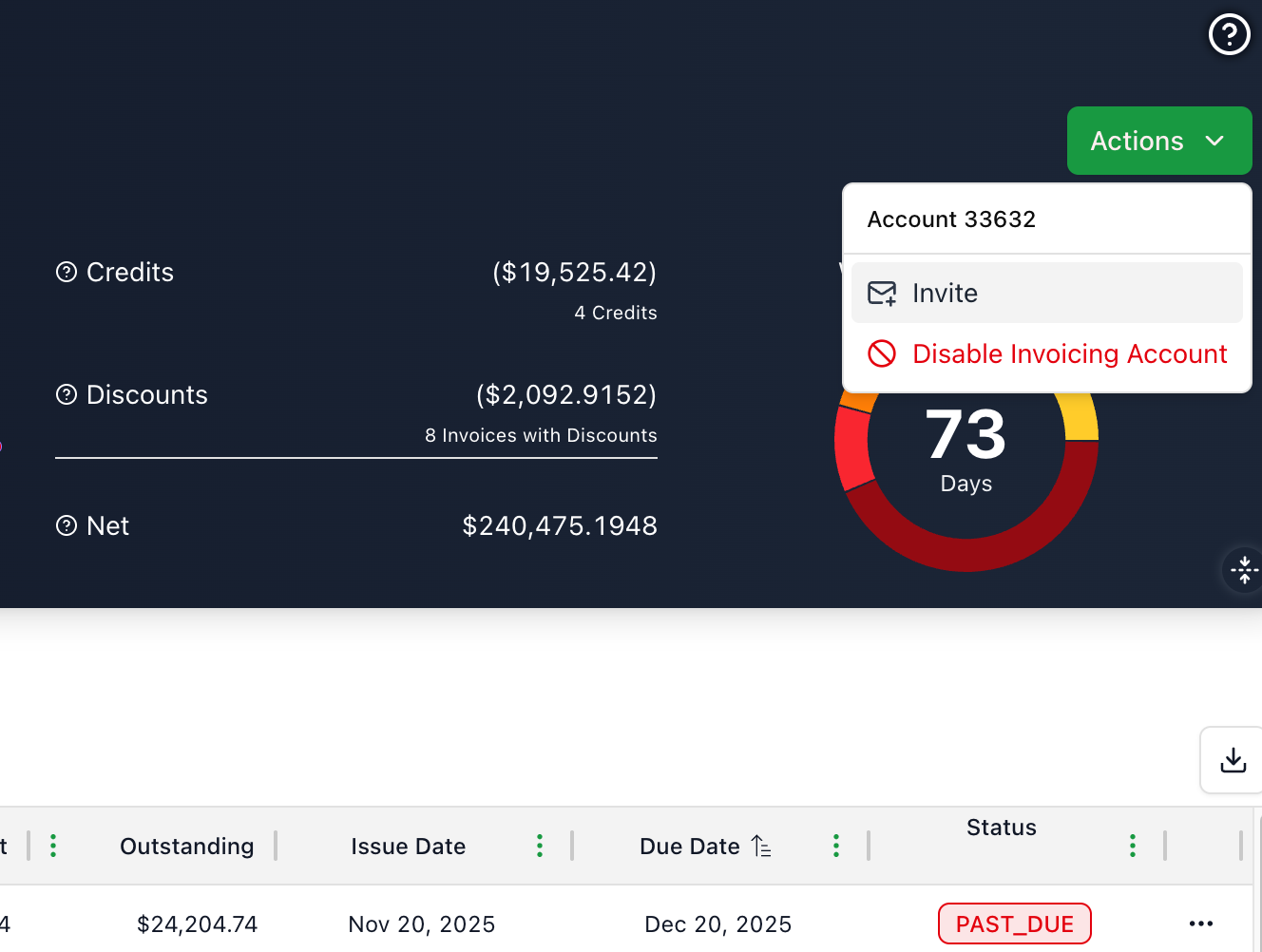
The customer receives a registration link. Once they register, they can sign in to the Payments portal and start paying.
Send bulk invitations
Bulk actions on the Customers Dashboard let you Enable Invoicing Account or Disable Invoicing Account for the selected customers. To send invitations, invite customers individually so you can confirm each contact's name and email before sending.
Let customers request access
Customers can also onboard themselves through self-service. Share the Request Drypowder Access link (configured in Settings → Notifications), and customers who submit the form appear in your pending access-requests view, where you Approve or Deny each request.
The request page shows your company name, and your logo above the request form when a logo is set up for your account. A customer following your link sees whose portal they are joining before they submit anything. Accounts with no logo set up get a plain form with your company name.
To get your logo on the page, ask your customer success team or Drypowder support to add it. It is worth doing before you send the link widely, since the page is the first thing a customer sees of your portal.
Track customer status
Each customer on the dashboard shows a status badge:
| Status | What to do |
|---|---|
| Not Invited | Customer has not been invited yet. Consider inviting them. |
| Invited | Invitation sent. Give them a few days, then follow up if they have not registered. |
| Registered | Customer is registered and can pay through the portal. No action needed. |
| Disabled | The customer's invoicing account is disabled. Re-enable it if they should be able to pay. |
If you need to withdraw an invitation before a customer registers, use the Cancel Invite action on the account.
Tips
- Prioritize high-balance accounts. Sort by outstanding balance or Collection Priority to identify which customers to invite first. The largest balances give you the biggest return on getting a customer into the portal.
- Follow up on Invited customers. If a customer has shown Invited for more than a week, a quick phone call or email nudge can make the difference. Sometimes the invitation lands in spam or gets lost in a busy inbox.
- Check contact information. Confirm the contact's name and email in the invite dialog before sending. If a customer says they never received the invitation, verify the email address you sent it to.
Related
- Tutorial: invite a customer — Step-by-step walkthrough including what the customer sees.
- Review and prioritize accounts — Deciding which customers to invite next.