

Payments page
Incoming Payments and Settlements tabs in full detail, including the posting wizard and settlement states.
The Payments page has two tabs: Incoming Payments for tracking payments received from customers, and Settlements for batch reconciliation and GL posting.
Incoming Payments tab
Payment list
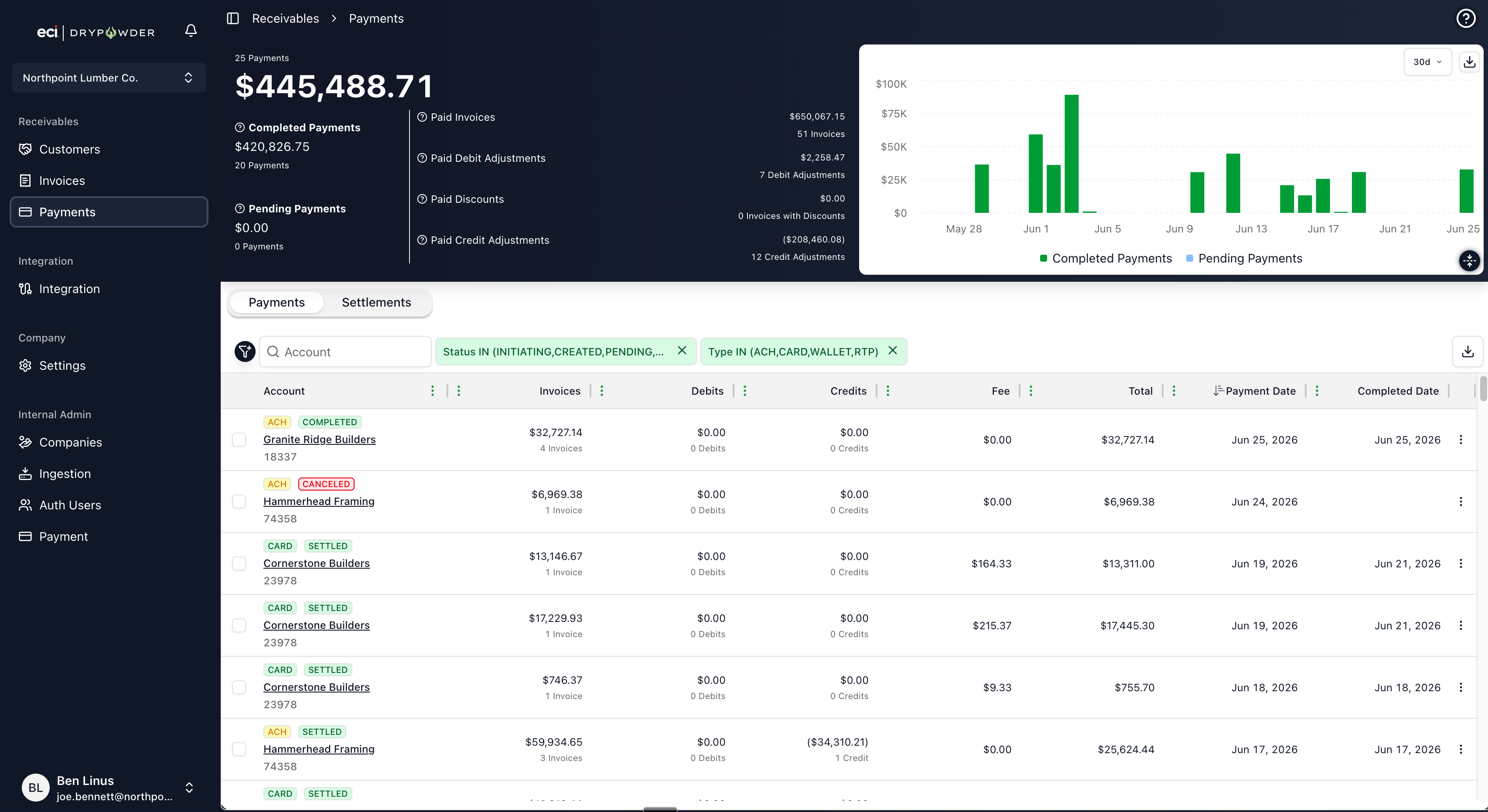
Each row represents one payment received from a customer:
| Column | Description |
|---|---|
| Account | Customer company name and external account ID |
| Invoices | Invoice amount covered by the payment |
| Debits & Charges | Debit adjustment amount covered |
| Credits | Credit adjustment amount applied |
| Total | Total payment amount |
| Fee | Processing fee for the payment |
| Payment Date | When the customer submitted the payment |
| Type | Payment method (ACH, Card, Wallet, or RTP) |
| Status | Pending, Completed, Settled, Failed, Frozen, Terminated, Reversed, or Canceled |
| Completed Date | When the payment completed |
Payments are listed with the most recent at the top.
Payment detail view
Click a payment row to see full details:
- Payment amount and method (with account or card identifier)
- Status with timestamps for each stage
- Invoices covered — Which invoices this payment was applied to, with amounts per invoice
- Credit adjustments — Credits included with this payment
- Debits & Finance Charges — Debit adjustments included with this payment
Payment review actions
Failed payments are reviewed through the Review Failed Payments flow, where you can:
| Action | Result |
|---|---|
| Freeze | Sets status to Frozen. Keeps the payment as-is and prevents the invoices, debits, and credits it covered from becoming eligible for payment again. |
| Terminate | Sets status to Terminated. Makes the invoices, debits, and credits the payment covered eligible for payment again. |
Filters
| Filter | Options |
|---|---|
| Status | Pending, Completed, Settled, Failed, Frozen, Terminated, Reversed, Canceled |
| Date Range | Start and end date for payment date |
| Amount Range | Minimum and maximum payment amount |
| Payer | Search by customer name or account ID |
Filters persist across navigation.
Statistics chart
A statistics panel shows payment activity over a selectable time range (7, 15, 30, 60, or 90 days, or 1 year). It breaks down completed versus pending payments, shows a payment-method pie chart, and offers a Download Chart Data button to export the underlying figures as CSV.
Export
Click CSV Export to download the current filtered view.
Settlements tab
Settlement list
Each row represents a settlement batch, a group of related payments ready for GL posting. The list shows these columns:
| Column | Description |
|---|---|
| Type | Settlement type |
| Completed | When the settlement completed |
| Payments | Number of payments in this batch |
| Accounts | Number of accounts represented |
| Invoices | Invoice amount in the settlement |
| Discounts | Discount amount |
| Debits & Charges | Debit adjustment amount |
| Credits | Credit adjustment amount |
| Fees | Processing fees |
| Total | Total settlement amount |
| Postings | Posting status for the settlement, with the available posting action |
Settlement detail view
Click a settlement row to see:
- Payments included — All payments in this batch.
- Posting status — Tracked separately for three categories:
- Invoices — Posted timestamp (or unposted)
- Credit Adjustments — Posted timestamp (or unposted)
- Debit Adjustments — Posted timestamp (or unposted)
Posting cell actions
The Postings cell shows the action available for the settlement's current state:
| Action | Description |
|---|---|
| Start Posting | Begin posting an unposted settlement. Opens the posting wizard. |
| Continue Posting | Resume posting a settlement that has been partially posted. |
| View Results | Review the results of a completed posting. |
| Resolve Errors | Address a failed or partially successful posting. Appears only when a posting failed or partially succeeded. |
Invoices can auto-post to the Spruce GL for ECI Spruce-integrated dealers. Dealers whose ERP connects through a third-party integration partner instead can also auto-post: your integration partner reports the result back to Drypowder, and the same posting states and wizard steps apply. Debit and credit adjustments are always posted manually — you download a file and confirm — even on Spruce.
Posting wizard
The posting wizard walks through the posting of a settlement:
- Confirmation — Confirms the settlement and posting path.
- Posting — Shows progress as invoices post to the GL (and prompts you to download and confirm the debit and credit adjustment files).
- Completion — Confirms posting and sets timestamps.
Posting states
A settlement's posting state can be:
| State | Meaning |
|---|---|
| Unposted | The settlement has not been posted to the GL yet |
| Manually Posted | The settlement was posted manually |
| Integration Posting Completed | The auto-post integration completed successfully |
| Integration Posting Resolved | A previously failed integration posting has been resolved |
| Integration Posting Failed | The auto-post integration failed |
| Integration Posting Partial Success | The auto-post integration posted some items but not all |