

Your first settlement reconciliation
Post a batch of settled payments to the Spruce general ledger and verify the result. About ten minutes.
This tutorial walks you through posting a settlement to the Spruce general ledger and verifying the result. By the end, you will understand how payments, settlements, and GL postings connect in Drypowder.
Plan on about ten minutes. You will need at least one settled payment in the system to follow along.
What is a settlement?
A settlement is a batch of related incoming payments that have been processed and deposited. Settlements appear on the Settlements tab of the Payments page. Each settlement tracks whether its invoices, credit adjustments, and debit adjustments have been posted to the Spruce general ledger.
Step 1: Navigate to the Settlements tab
Click Payments in the left sidebar, then click the Settlements tab. You will see a list of settlement records. The columns are:
| Column | What it tells you |
|---|---|
| Type | The kind of settlement |
| Completed | When the settlement completed |
| Payments | Number of payments in this batch |
| Accounts | Number of accounts involved |
| Invoices / Discounts / Debits & Charges / Credits / Fees | Amounts in each category |
| Total | Total settlement amount |
| Postings | The posting action for the settlement (Start Posting, Continue Posting, View Results, or Resolve Errors) |
Step 2: Open a settlement
Click on a settlement row to see its details. The detail view shows which payments are included and the posting status for each category:
- Invoices — Posted or not posted, with timestamp
- Credit Adjustments — Posted or not posted, with timestamp
- Debit Adjustments — Posted or not posted, with timestamp
If nothing has been posted yet, all three categories will show as unposted.
Step 3: Post to the GL
From the Postings cell, click Start Posting to open the posting wizard.
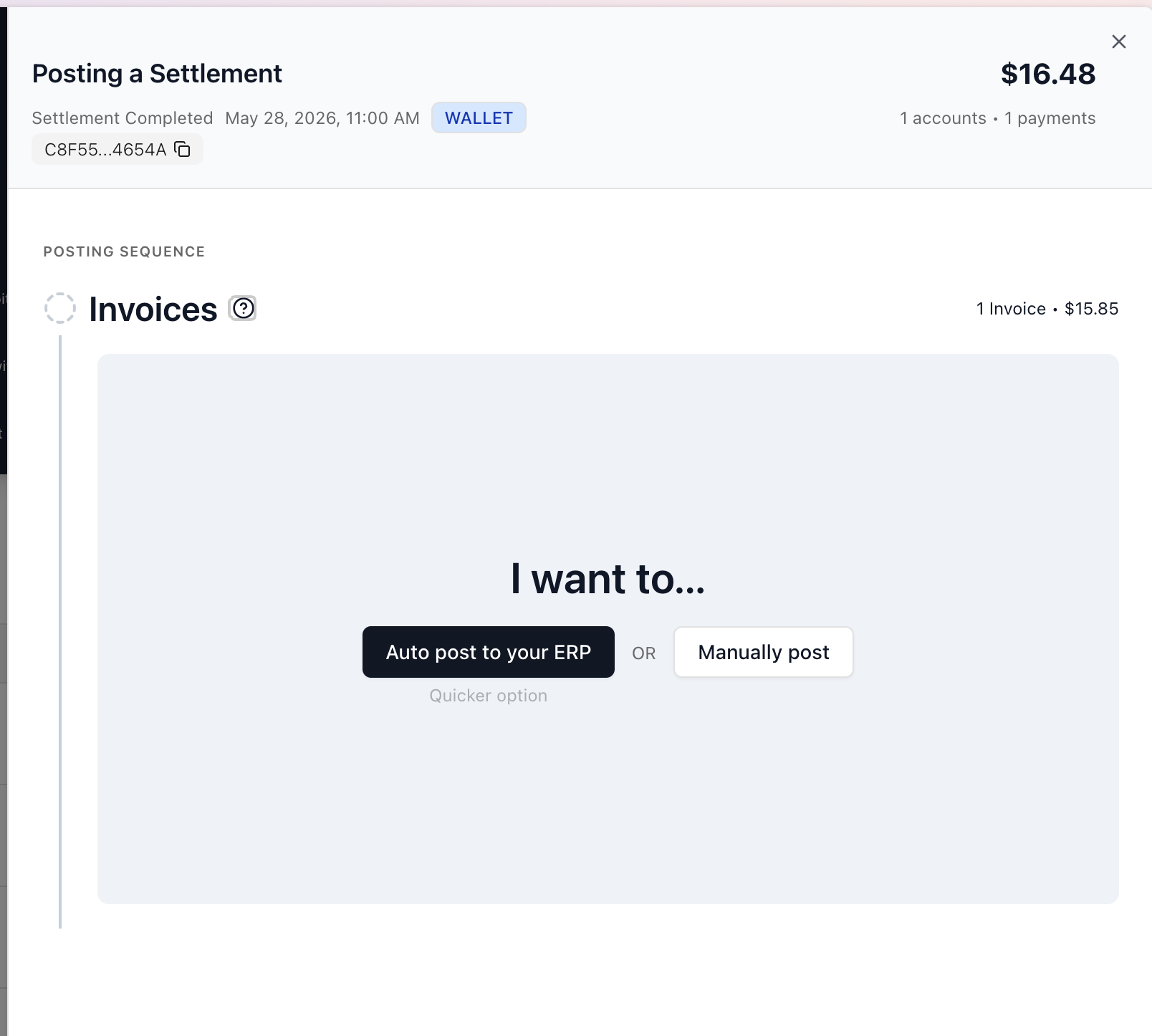
Invoices (auto-post on ECI Spruce): If your dealership has direct Spruce integration, Drypowder posts the invoice data directly to the Spruce general ledger. The wizard shows a progress indicator while posting and confirms when complete. No manual file handling is required for invoices.
Debit and credit adjustments (always manual): Debit adjustments and credit adjustments are always posted manually, even on a Spruce integration. Drypowder generates a file that you download and post in your ERP yourself, then you confirm in the wizard.
If a step fails or only partially completes, the action becomes Resolve Errors so you can work through the items that did not post. If you stop partway, you will see Continue Posting to pick back up.
Step 4: Verify the posting
After posting completes:
- The settlement's posting status updates to show each category as posted, with a timestamp.
- If invoices auto-posted, they are now reflected in the Spruce GL. You can verify by checking the customer's account in Spruce.
- For the debit and credit adjustments, post the downloaded file in your ERP and then confirm in the wizard. Use View Results to review what was posted.
Step 5: Download a summary
If you need a record of the settlement for your files, click Download Summary CSV. This generates a CSV with all payments in the settlement, including amounts, payment methods, and dates. It is useful for month-end records or sharing with your controller.
What you just did
You took a batch of settled payments, posted their invoices to the Spruce GL (automatically on Spruce, with adjustments posted manually), and verified the result. That is the core settlement workflow in Drypowder.
What to do next
- Reconcile and post settlements — The how-to guide for daily and monthly reconciliation workflows.
- Payments page reference — Full documentation of the Incoming Payments and Settlements tabs.
- How payments flow from invoice to GL — Understand the full journey from customer submission to general ledger entry.