

Set up payment reminders
Send automatic monthly emails to customers when they have an outstanding balance.
Payment reminders are automated emails sent to your customers on a recurring monthly schedule. When a customer has an outstanding balance, Drypowder emails them with the amount owed and a link to their Payments portal to pay. You configure when the reminder fires; Drypowder handles the rest.
Before you start
- The customer must be registered in the Payments portal. Reminders go to all registered users at the customer's company. Customers who are invited but have not yet registered will not receive reminders.
- Your AR data must be synced within the last 24 hours. If a sync is overdue, reminders are held until the data is current.
Enable reminders
- In the AR operator portal, open Company → Settings and go to the Notifications tab.
- Scroll to the Payment Reminders section and toggle Enable Reminders on.
- Set the Statement Day of Month — the calendar day (1–31) that represents your statement date. For example, if your statements close on the 15th, enter
15. - Set the Reminder Offset Days — how many days after the statement date to send the email (0–30). An offset of
0sends on the statement day itself; an offset of7sends one week later. - Check the Next Fire countdown to confirm when the next reminder will go out. Hover over it to see the exact date.
- Save your settings.
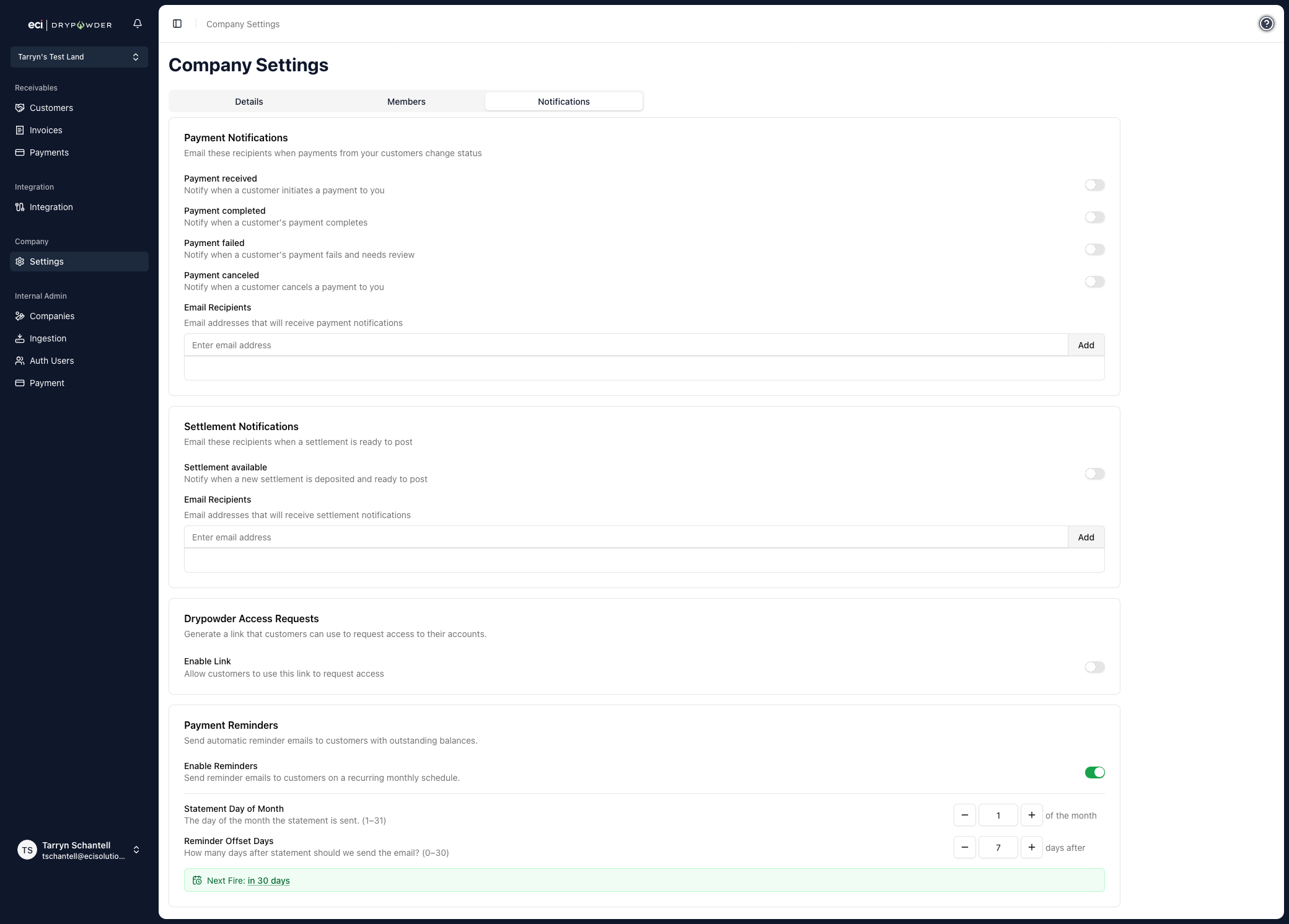
Reminders fire at 6:00 am in your company's configured timezone. The Statement Day and Offset fields are only shown when Enable Reminders is on.
What the customer receives
Each registered user at the customer's company receives one email per reminder cycle. The email arrives with the subject "Your statement is ready" and includes a summary of what they owe.
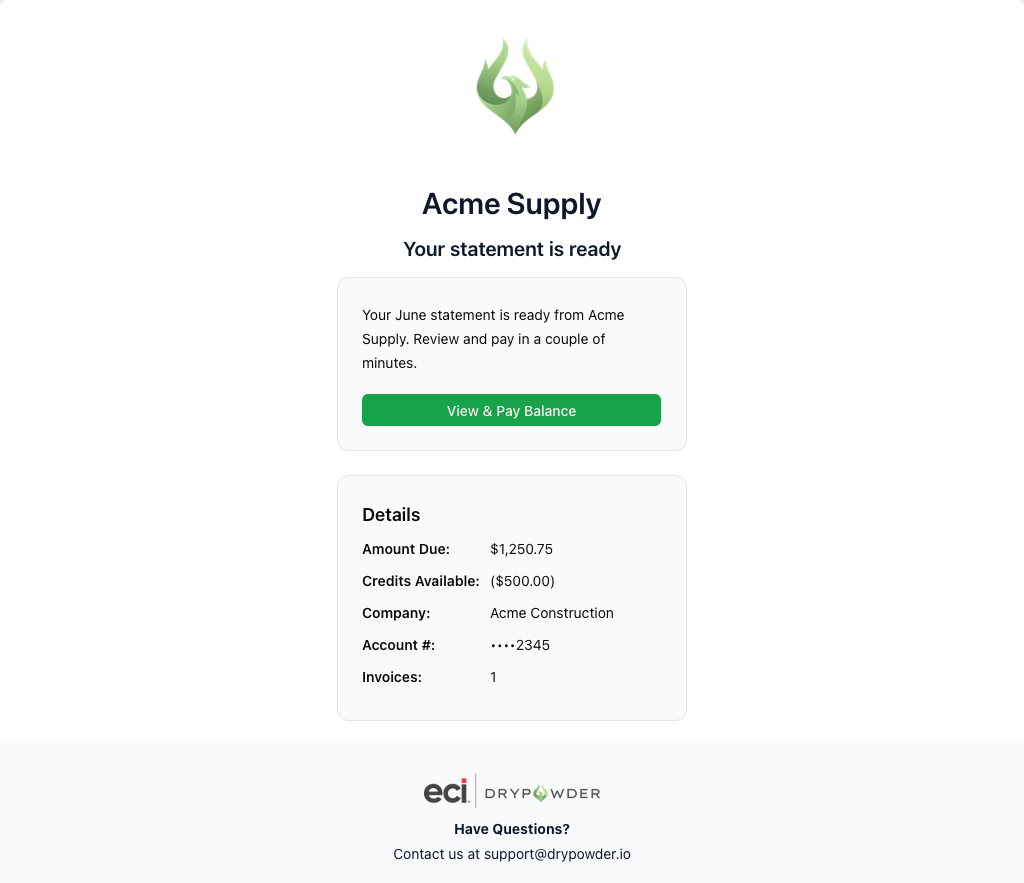
The Details section of the email shows:
| Field | What the customer sees |
|---|---|
| Amount Due | The full outstanding balance |
| Credits Available | Any credits on the account |
| Company | The customer's company name |
| Account # | Last four digits of their invoicing account |
| Invoices | Count of outstanding invoices |
The View & Pay Balance button links directly to the customer's Pay page in the Payments portal.
A customer with no outstanding balance on the reminder date does not receive an email that cycle.
Change the reminder schedule
Return to Company → Settings → Notifications → Payment Reminders at any time to adjust the statement day or offset. The Next Fire countdown updates immediately so you can confirm the new timing before saving.
Disable reminders
Toggle Enable Reminders off in Company → Settings → Notifications → Payment Reminders. No further reminder emails will be sent until you re-enable the setting.
Tips
- Align the statement day with your billing cycle. If your statements close at the end of the month, set the day to
31— Drypowder clamps automatically to the last valid day of each month (e.g., February 28). - Reminders complement invitations, not substitute for them. A customer who has never registered will not receive reminders. If you have customers who have not yet joined the portal, start with inviting them.
Related
- Invite a customer to pay online — Register customers in the portal so they are eligible to receive reminders.
- Track incoming payments — Monitor payments that come in after a reminder goes out.