

Track incoming payments
Monitor payments received from customers, review their status, and manage exceptions.
Monitor payments received from customers, review their status, and manage exceptions. The Incoming Payments tab gives you real-time visibility into money coming in.
View all incoming payments
Open the Payments page from the left sidebar. The Incoming Payments tab is the default view.
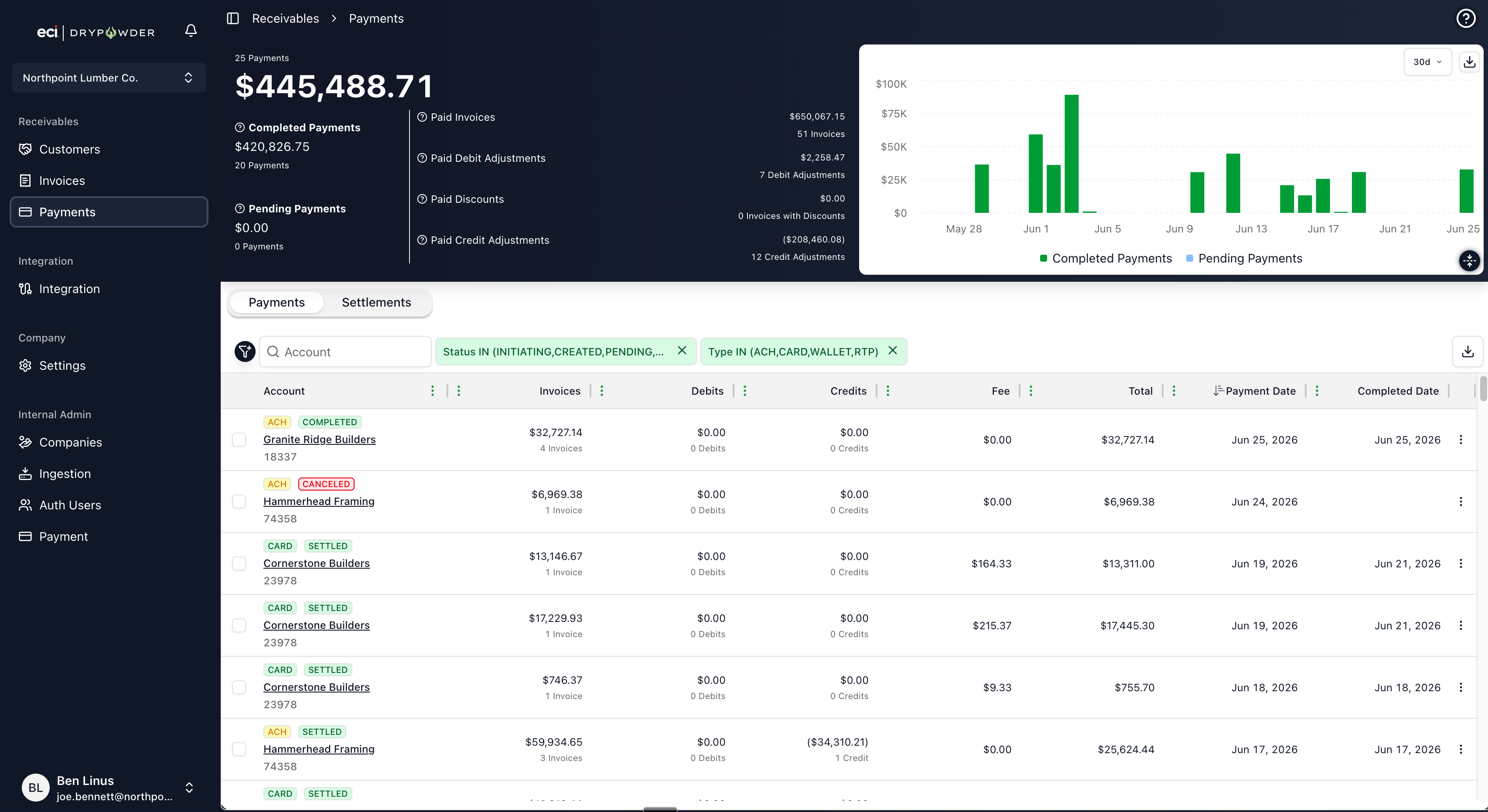
Each row shows:
| Column | Description |
|---|---|
| Account | Customer company name and external account ID |
| Invoices | Amount applied to invoices |
| Debits & Charges | Amount applied to debit adjustments |
| Credits | Amount applied to credit adjustments |
| Total | Total payment amount |
| Fee | Processing fee on the payment |
| Payment Date | When the customer submitted the payment |
| Type | Payment method (ACH, Card, Wallet, or RTP) |
| Status | Pending, Settled/Completed, Failed, Frozen, Terminated, Reversed, or Canceled |
| Completed Date | When the payment completed |
Payments are listed with the most recent at the top.
Filter payments
Use the filter controls to narrow the list:
- Status — Show only payments in a given status, such as Pending, Completed, Failed, Frozen, Terminated, Reversed, or Canceled.
- Date Range — Payments within a start and end date.
- Amount Range — Minimum and maximum payment amount.
- Account — Search by customer name or account ID.
Filters persist as you navigate, so you do not need to re-apply them each time you return to the page.
Check the statistics panel
The statistics panel summarizes payment activity over a selectable time range (7, 15, 30, 60, or 90 days, or 1 year). It shows completed-versus-pending counts and a pie chart breaking payments down by payment method. Use Download Chart Data to export the underlying numbers as a CSV.
Review a payment
Click any payment row to see its details, including:
- The full payment amount and method.
- Which invoices the payment covers, with amounts applied per invoice.
- Any credit or debit adjustments included with the payment.
- The current status and timestamps.
Manage failed payments
When a payment fails, work it through the Review Failed Payments flow, where you choose how to handle the invoices, debits, and credits the payment was meant to cover.
Terminate a payment. Terminating the payment makes those invoices, debits, and credits eligible for payment again, so the customer (or another payment) can cover them.
Freeze a payment. Freezing keeps the payment as-is and prevents those same items from becoming eligible for payment again. Use this when you do not want the items re-attempted.
Export payments
Click the CSV Export button to download the current filtered view as a CSV file. This is useful for sharing payment data with your controller, importing into a spreadsheet, or archiving records.
Tips
- Check the Payments page daily. A quick scan of today's incoming payments takes less than a minute and keeps you informed.
- Filter by Pending to see money in transit. Pending payments are submitted but not yet settled. ACH payments stay in Pending for 1 to 3 business days.
- Use the Settlements tab for reconciliation. The Incoming Payments tab tracks individual payments; the Settlements tab groups them into batches for GL posting. See Reconcile and post settlements.
Related
- Payments page reference — Full documentation of both tabs.
- Payment statuses — Every status defined.
- Reconcile and post settlements — Posting payments to the GL.